Guidelines for using the Shop Pay logo
When you use Shop Pay logos, then you agree to Shop Pay Trademark Usage Guidelines, and understand that violating these guidelines will result in the termination of your license, or permission to use Shop Pay brand assets. Make sure that you follow the Shopify guidelines for using the Shop Pay logos correctly.
You can download all Shop Pay logos as a zip file that includes .eps, .jpg, .png, and .svg. Whenever possible, display the Shop Pay logo in full color.
For guidance on using Shop Pay Installments brand artwork, refer to using Shop Pay Installments artwork.
For guidance on using the Shopify brand, including The Shopping Bag and the italicized Shopify wordmark, refer to using our brand.
On this page
Shop Pay primary logo
Whenever possible, display the Shop Pay primary logo in full color. The Shop Pay logo is also available in monotone colors.

Download Shop Pay primary logo
Monotone logos
When you can't use the full color logo, use the monotone option that provides the most contrast.
Use the monotone logo in the following circumstances:
- when you require single color printing
- when you can't get accurate color representation
- when you use a background with low contrast
- when you use a busy or patterned background

Download Shop Pay monotone logos
Clear space around the Shop Pay logo
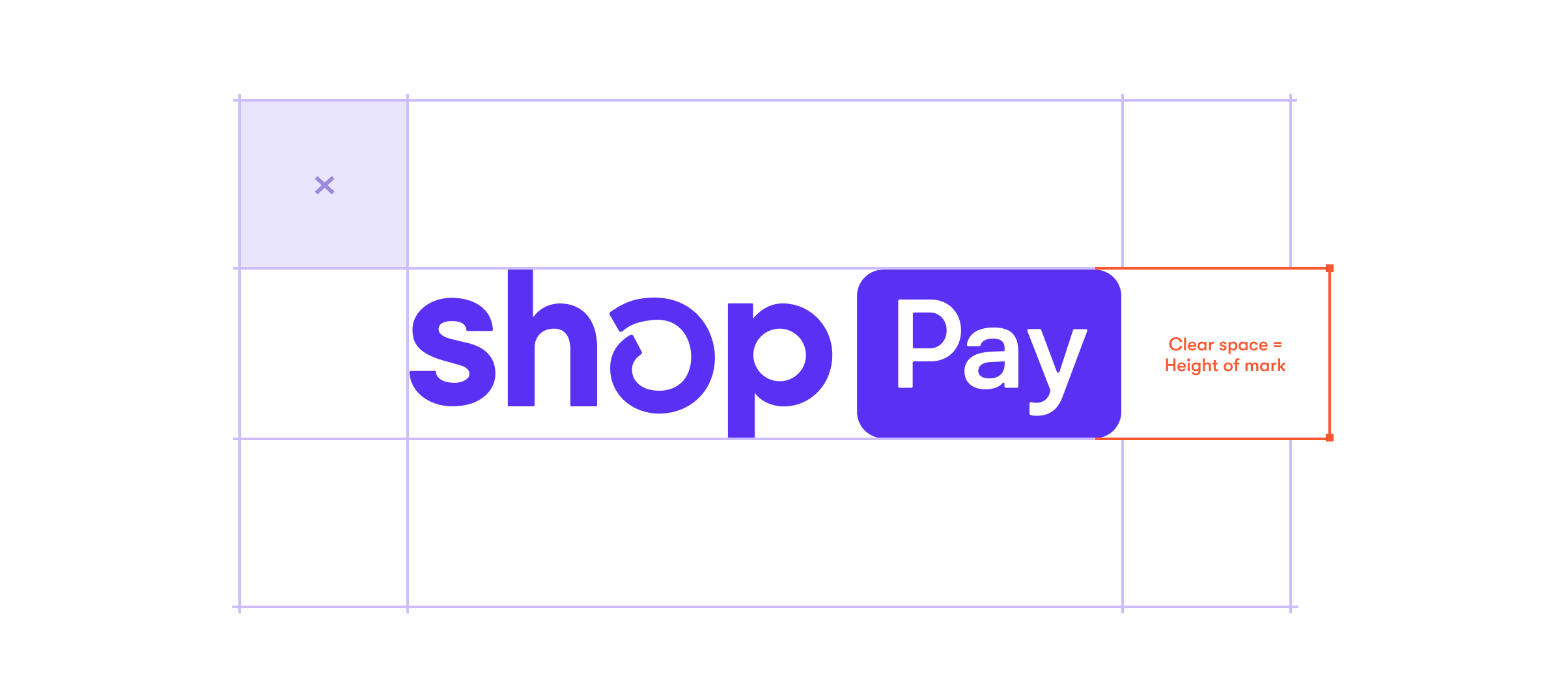
When you use Shop Pay logos, always keep a clear space or padding of 'X' around the logo to maximize its visual impact in every composition.
'X' refers to the height of the logo.
Minimum size of the Shop Pay logo
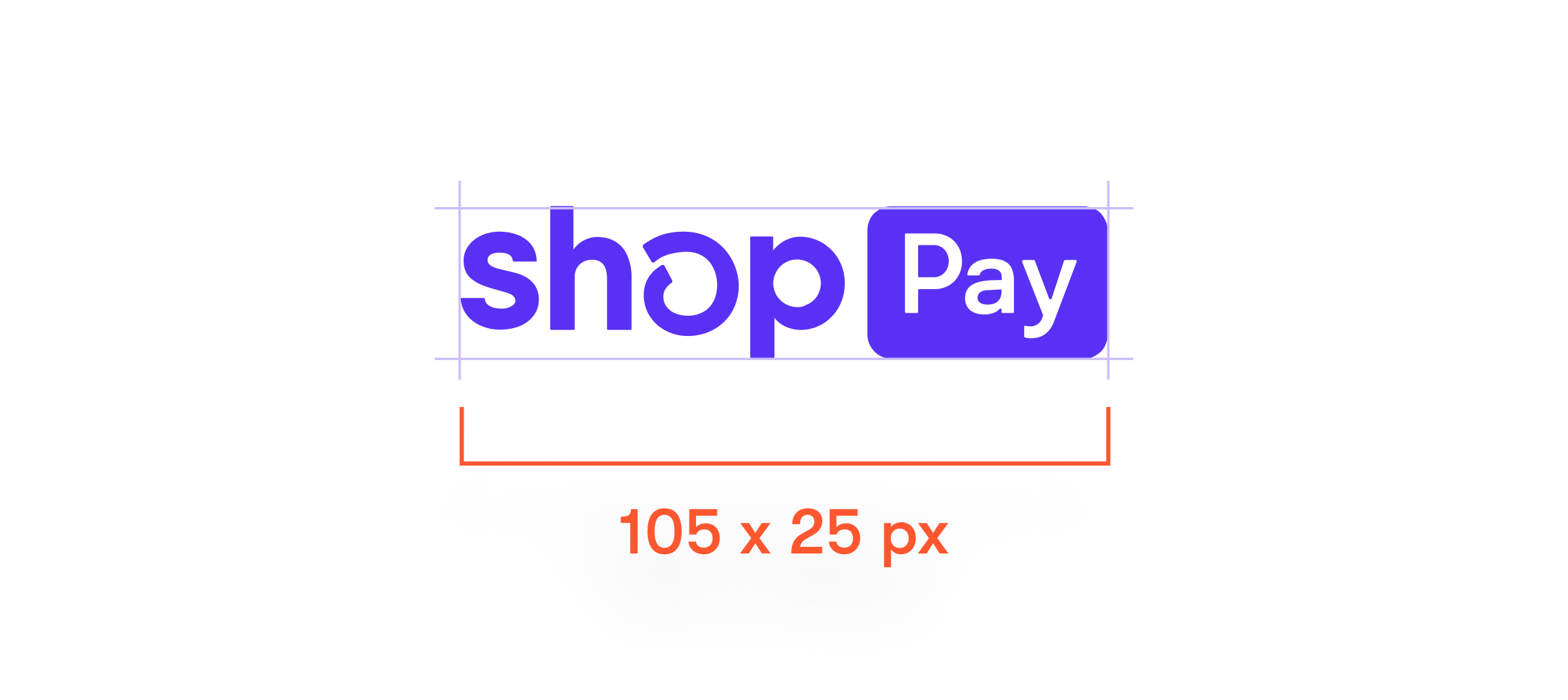
To maintain the visual integrity of the Shop Pay logo, don't scale it below 105 x 25 pixels (px).
Best practices
When you use the Shop Pay logo in your online store, consider the recommendations in the following table.

| 
|

| 
|
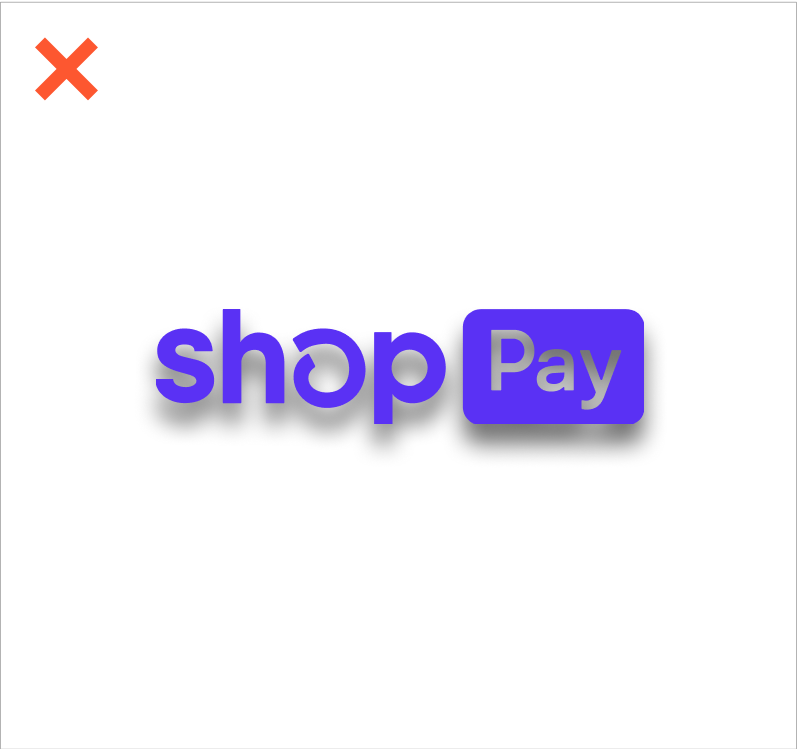
Here are some examples of what you should avoid when using the Shop Pay logo.
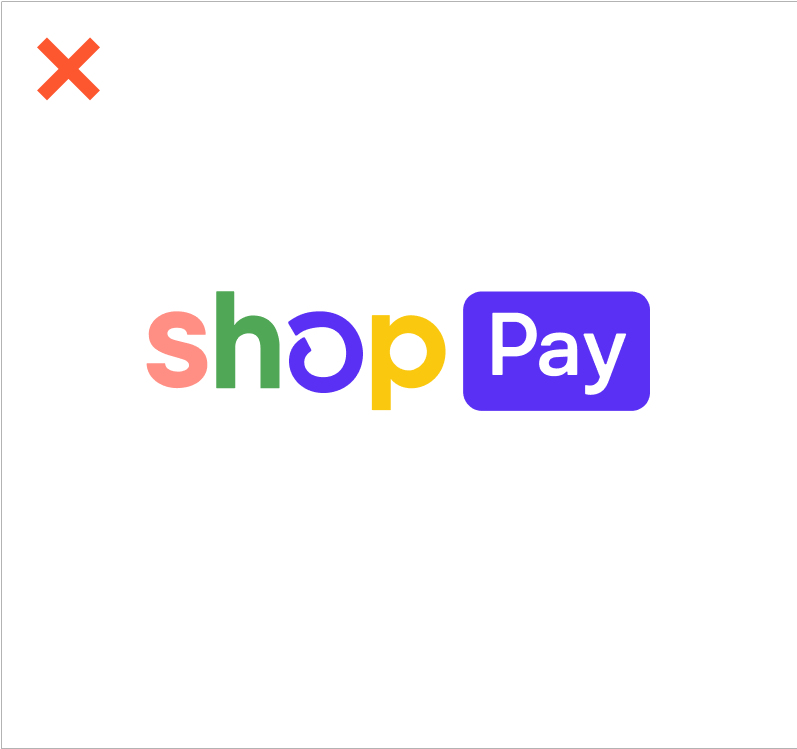
The only variations accepted are full color, all black, or all white. | 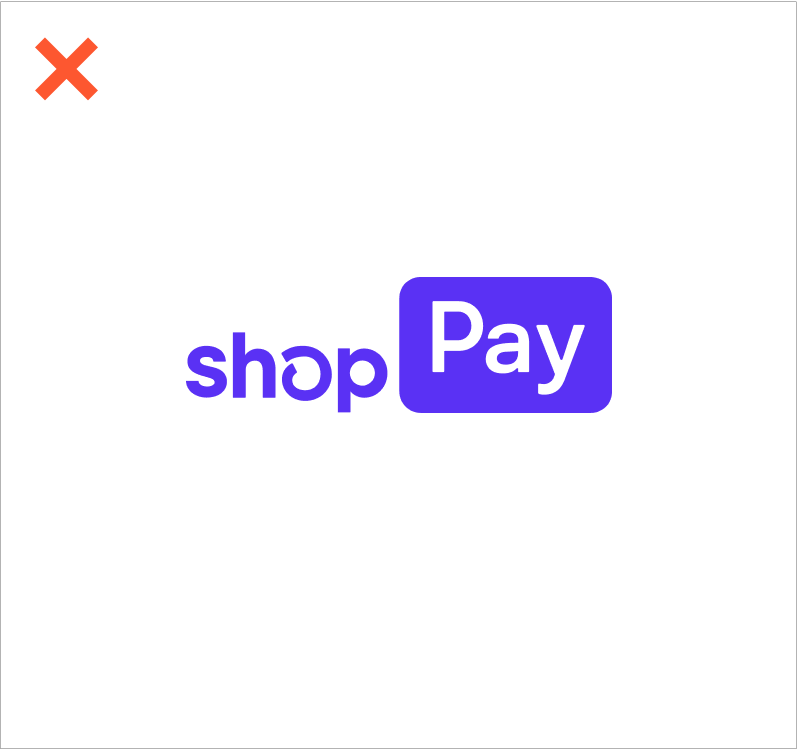
|
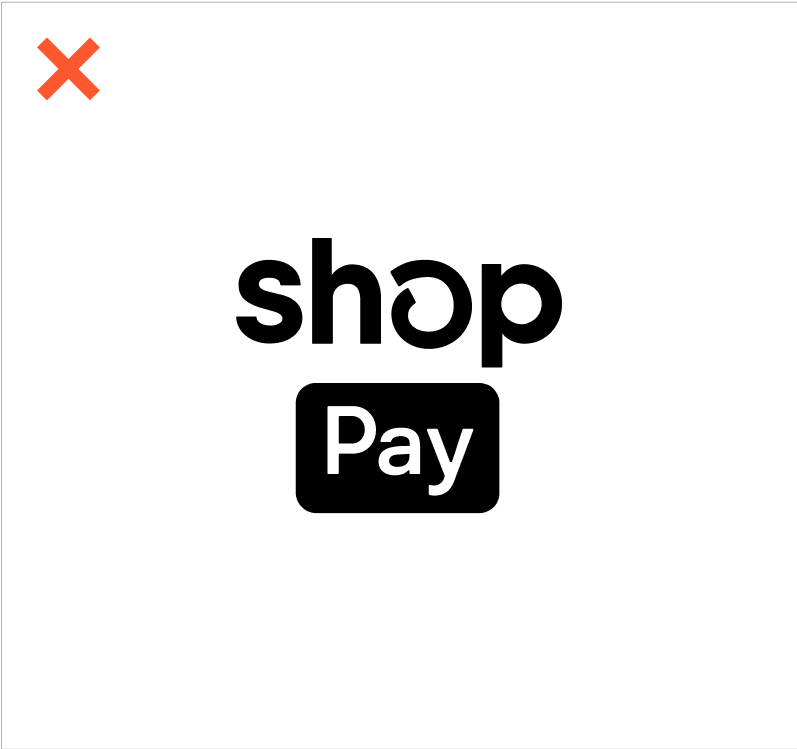
Instead, use a monotone logo to provide the most contrast. | 
|
| 
|
Learn more about designing for web accessibility.
Add payment buttons
If you're using Shop Pay, then you can use the Shop Pay checkout button or the Buy with Shop Pay button.
Shop Pay checkout button
The Shop Pay checkout button is located in dedicated express checkout sections. The button is often used when it's bundled with other express payment options on cart pages or on checkout.

Buy with Shop Pay button
The Buy with Shop Pay button is used when it’s isolated and lacks further context on the page. The inclusion of the words Buy with lets your customers know what happens when they click the button. This button is often used on product pages where it creates a cart and sends the customer directly to Shop Pay.

Monotone payment buttons
If you don't want to use the full color payment button, then you can use the monotone option that aligns with your branded checkout experience.
Download all Shop Pay payment buttons
Trademark usage guidelines
These guidelines explain how you must use and visually present the Shop Pay brand assets. Use of the Shop Pay brand assets indicates your acceptance of these guidelines and that you understand that your use of these brand assets in violation of these guidelines will result in automatic termination of your license and/or permission to use them.
- You may only use these brand assets following the guidelines set out on this page and only for the purpose of promoting the store of a Shopify merchant that has activated Shop Pay, unless otherwise expressly authorized in writing.
- Your use of these brand assets must not mislead consumers as to our sponsorship of, affiliation with or endorsement of your company or your products or services.
- The brand assets, including “Shop Pay” and the Shop Pay logo, are our exclusive property, and all goodwill that results from your use of any of those brand assets will be solely to our benefit and you will not take any action that is at odds with our ownership of those brand assets. Where used on a web page these brand assets should include embedded hyperlinks to our homepage: www.shopify.com.
- Our brand assets must be used in a respectful manner. They may not be used in a way that harms us, our products or services, or in a manner which, in our opinion, lessens or otherwise damages our reputation or the goodwill in our trademarks or any other brand assets we own. In other words, don't associate our brand assets with any illicit or illegal activities or use them in a way that is deceptive or harmful.